
Find the waste and the risk in your IT estate.

ClearVisibility Desktop runs on one Windows PC. Import a device list or sign in to Microsoft 365, and the findings are there in minutes.
See pricing
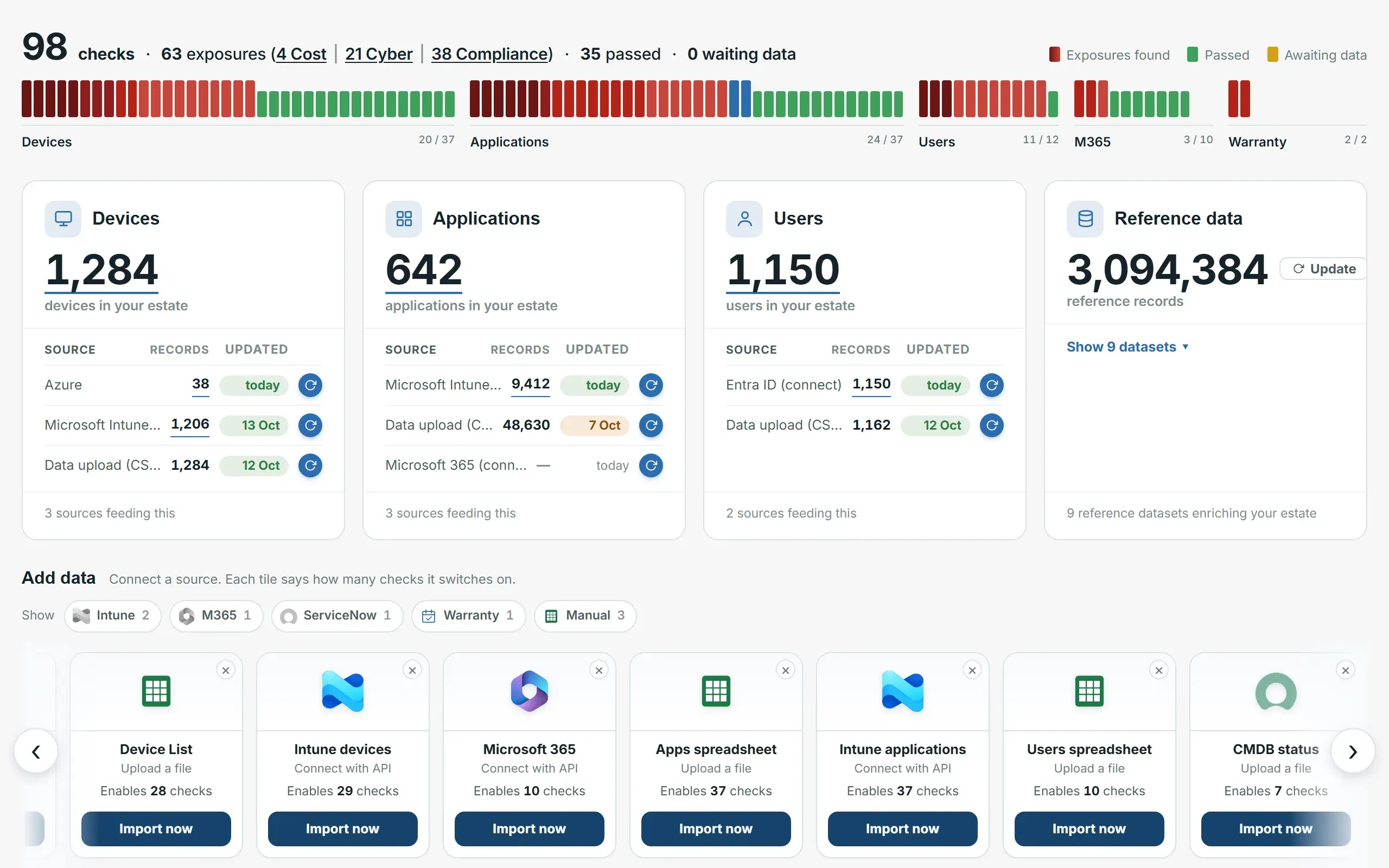
The ClearVisibility Desktop home page: checks run against the estate, device, application and user counts with their sources, and tiles for adding more data.
The home page after a first import. Example figures.

Free to start. Runs on 64-bit Windows 10 and 11, installs without administrator rights, and keeps your data on your PC.

What it finds.

More than 120 checks run against your data. The findings are grouped by what they mean for you: cost, savings, security and compliance.

Each finding carries its own numbers.

A finding names the devices, users or applications it covers, says where the figure came from, and puts a value on it. The checks use product lifecycle dates, vulnerability data and hardware energy figures that install with the app, so there is nothing else to set up.
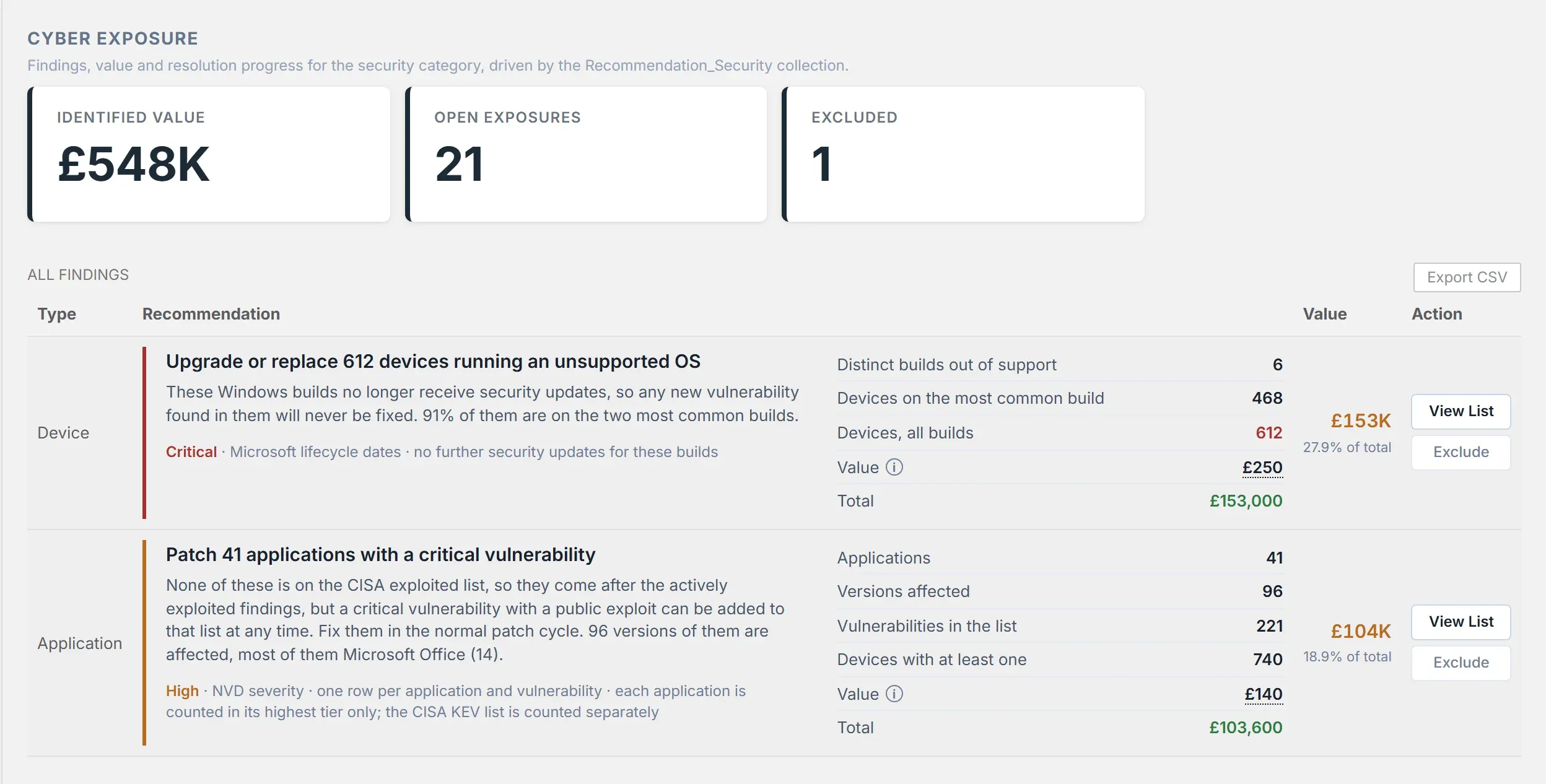
The cyber exposure page in ClearVisibility Desktop: identified value, open exposures, and findings such as devices running an unsupported operating system, each with its counts and value.
Example figures.

The money you can take back.

Microsoft 365 licences held by people who have not used them in 90 days, seats paid for and assigned to nobody, paid software on devices nobody uses, and old hardware priced against a current model along with the electricity it burns.
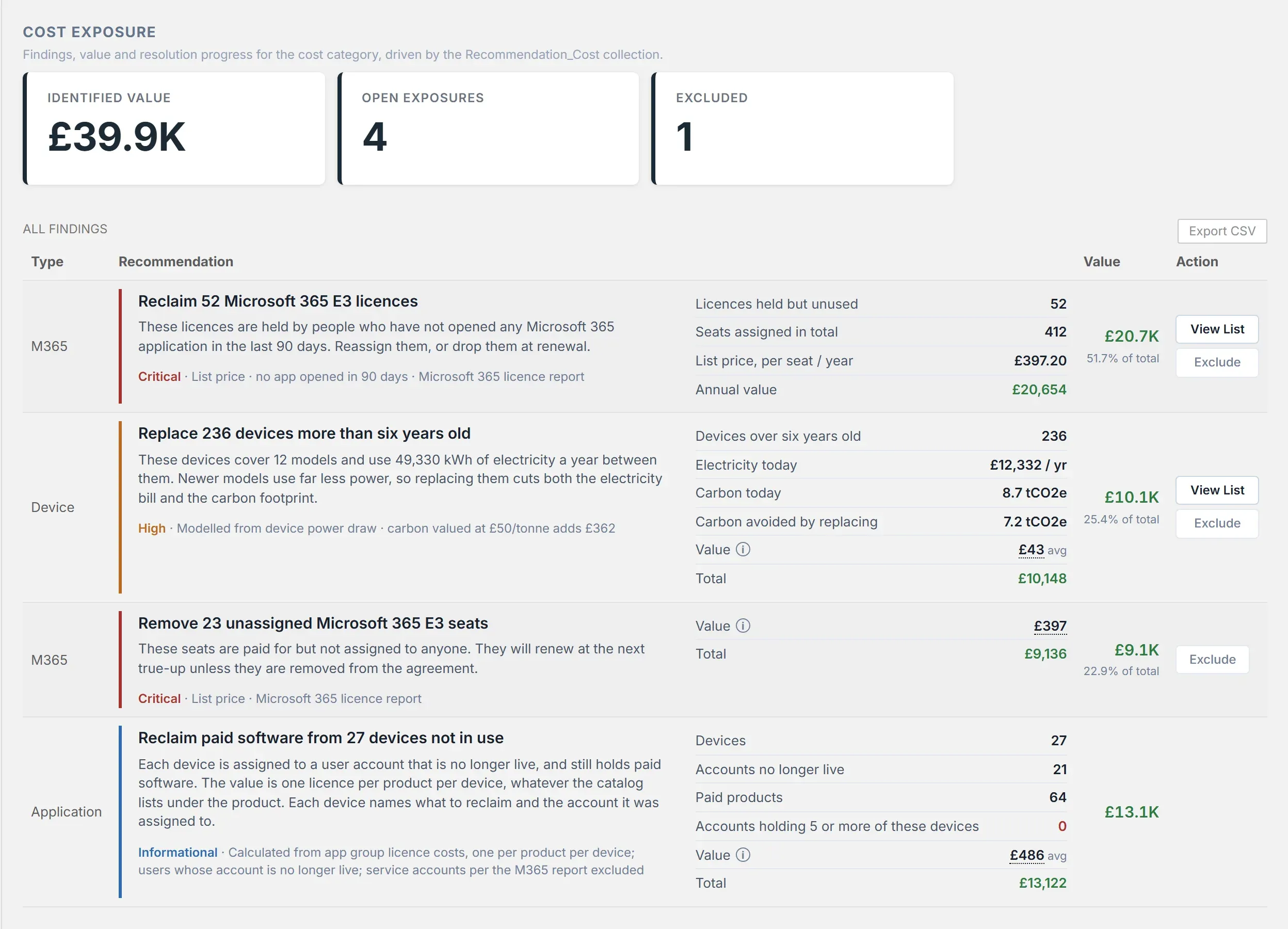
The cost exposure page: unused Microsoft 365 licences, paid software on devices not in use, devices more than six years old, and unassigned seats, each with its annual value.
Example figures.

Which devices to fix first.

Every device carries a risk score: the sum of its exposures, weighted by severity, worked out again after each import. The dashboard shows where the risk comes from, by application, operating system build or finding.
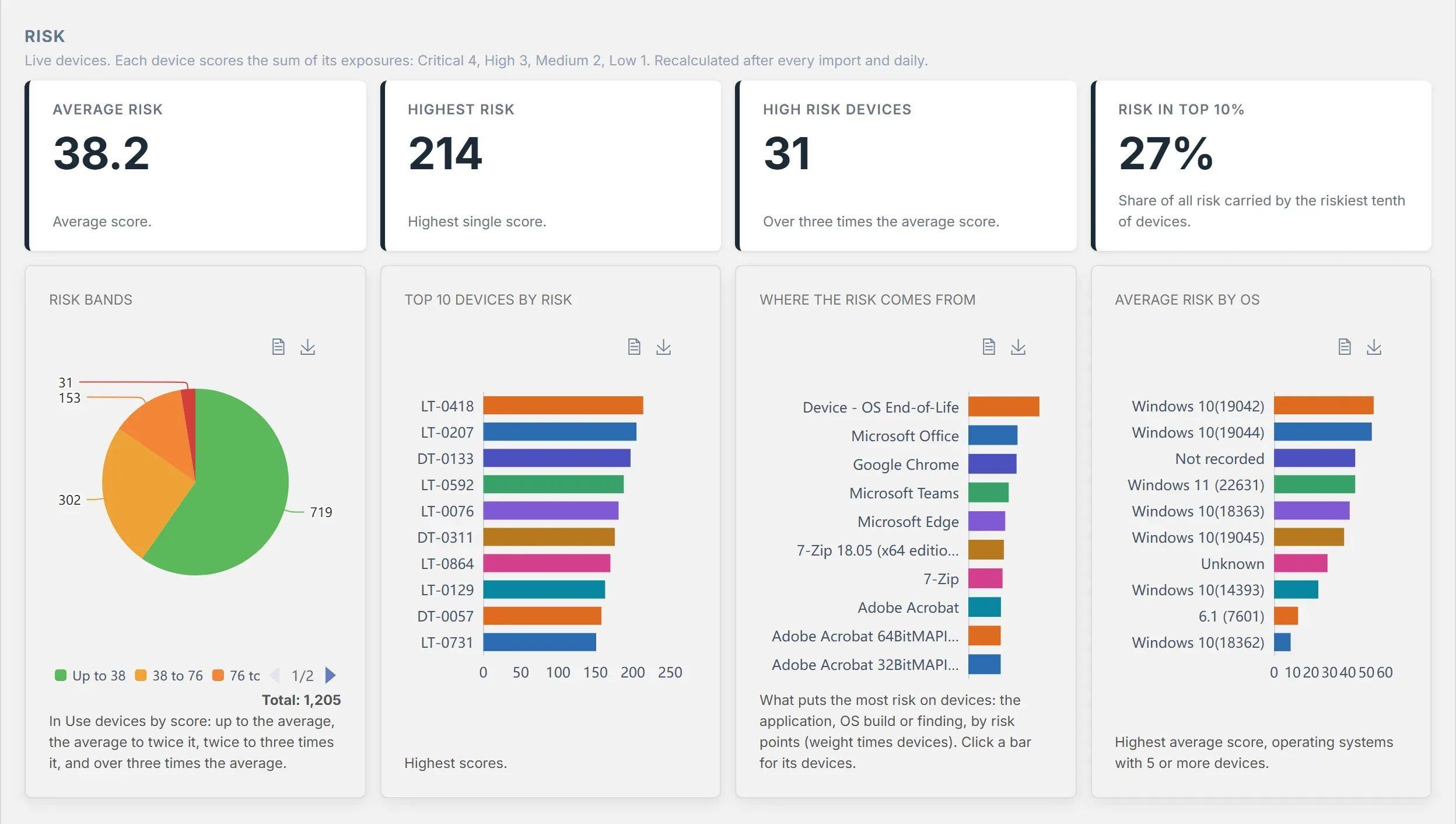
The device risk dashboard: average and highest risk scores, risk bands, the ten riskiest devices and where the risk comes from.
Example figures.

Bring the data you already have.

Import an export from Configuration Manager, Lansweeper, your asset register or any tool that writes a CSV file, and map its columns to ours as you go. Or sign in to Microsoft 365 and Intune and let ClearVisibility read them directly.
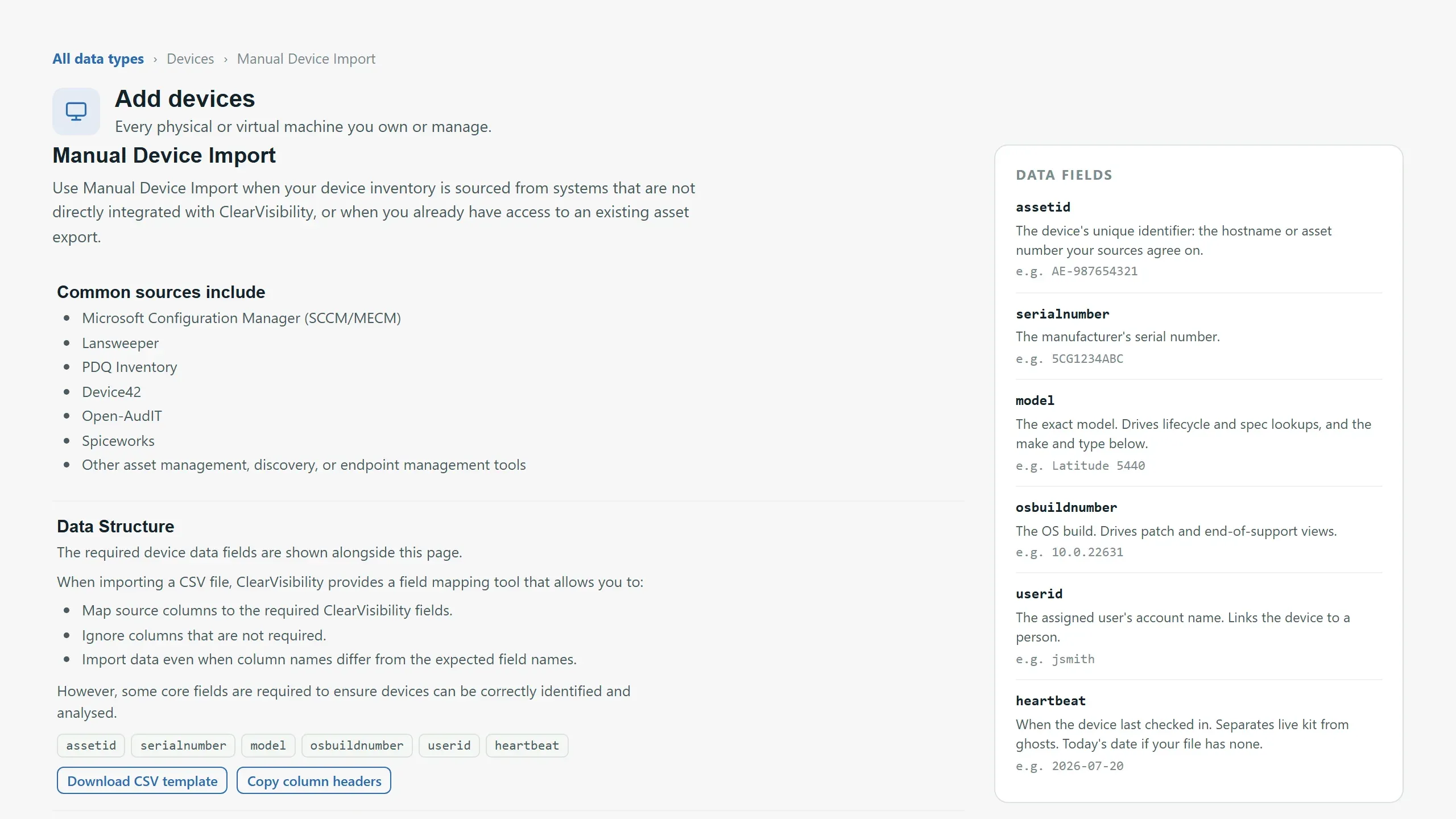
The device import page: common sources, the data fields ClearVisibility needs, and a CSV template to download.
Example figures.

Works with the data you already have.

Sign in to your Microsoft tenant, or import an export from almost any tool. Each source switches on the checks its data can answer.

Sign in and connect

Microsoft Intune
Managed devices and the applications installed on them.
Microsoft 365
Users, licences and whether each licence is being used.
Microsoft Entra ID
User accounts, sign-in activity and multi-factor status.

Import a file

Microsoft Configuration Manager
Devices and installed software, from an export.
Lansweeper, PDQ Inventory, Device42, Open-AudIT, Spiceworks
A device export from any of them, mapped to our columns as you import.
Your own spreadsheets
The device, user and application lists you already keep.
Device status and warranty
Lifecycle status and warranty dates for your devices.

Microsoft, Intune, Entra and Microsoft 365 are trademarks of the Microsoft group of companies. Other product names belong to their owners.

It stays on your PC.

The desktop edition is a local application. These limits are enforced in the software, not by hiding buttons.

Its own database

Created on your machine the first time it runs, under your local application data folder. Uninstalling asks whether to delete it.

Reachable only from your PC

It listens on 127.0.0.1 and nowhere else. It is never a network listener.

No network scanning

The desktop edition has no network discovery at all. It works from the data you import or connect.

No inventory leaves the machine

Updates, licensing and public reference data are all it fetches. What reaches us is registration once, a licence check daily, and downloads.

What a spreadsheet will not tell you.

Most estates start in a spreadsheet. It is free, and it is a snapshot of the day somebody last had time to update it.

CapabilityClearVisibility DesktopA spreadsheet
Ready to useIn minutes, on one PCOnce you have built it
End-of-support and vulnerability checksBuilt in, with the reference dataNo
Unused licences valued in moneyBuilt inBy hand, if someone has time
Stays currentRe-import or reconnect at any timeA snapshot of the day it was saved
Where your data livesYour PCWherever it was last saved or emailed
Price to startFreeFree

Running in minutes.

  1. Download and install

    About 103 MB. It installs into your own Windows profile, needs no administrator rights, and brings its own database.

  2. Add your data

    Import a CSV from Intune, Configuration Manager or your asset register, or sign in to Microsoft 365.

  3. Read the findings

    Cost, savings, security risk and compliance, each with its numbers and what it is worth.

Community is free. Professional is US$100 a month.

Community shows your estate and every finding's headline figures. Professional lists the items behind each one and lets you work with the data.

Community

FreeNo card, no time limit

  • Your devices, users and applications in one place
  • Every finding, with its headline figures
  • Dashboards and search across the estate
  • CSV import, and Microsoft 365 and Intune sign-in
  • Community support

Professional

US$100 a month, excluding tax

Bought from inside the app. Install the free edition, then choose Professional on the upgrade screen; it switches on as soon as payment completes.

Everything in Community, and:

  • The devices, users and applications behind every finding
  • Export any view, and update records in bulk
  • Custom dashboards, reports and report templates
  • Advanced filters and custom columns
  • Email support

Prices exclude tax, which is added at checkout for where you are. Both plans cover unlimited devices. Cancel at any time: you keep Professional to the end of the period you have paid for, then return to Community with your data intact.

Common questions.

64-bit Windows, and nothing else. It installs into your local application data folder, needs no administrator rights, and brings its own database, which it creates on first run. It uses the Microsoft WebView2 runtime for its own window: Windows 11 includes that and most Windows 10 machines already have it. Where it is genuinely absent, ClearVisibility opens in your default browser instead.
No. It is collected locally, analysed locally and held in your own database. There is no outbound path for inventory anywhere in the product. We hold no copy of it and have no way to read it.
Registration once, a licence check daily, and downloads. Registration sends your organisation name, the contact email address you type in, the name of the machine it is installed on, a randomly generated installation identifier, a one-way hash of those two, and the product version. The daily licence check sends your site reference, that installation identifier and the installation's own credential. Nothing else, and no part of your estate.
No. The desktop edition has no network discovery at all. It works from the data you import, or from the Microsoft 365 and Intune tenant you sign in to.
Yes. Community is free with no time limit and needs no card. We do not run separate paid trials, because Community already shows you your estate and its findings.
From inside the app: install ClearVisibility Desktop, then choose Professional on the upgrade screen. Payment is taken at checkout by our payment provider, with the tax for where you are added; your card details go to the provider and we never see or store them. Professional switches on as soon as payment completes.
Cancellation stops the next renewal. You keep full access to the end of the period you have already paid for, and the installation then returns to Community. Your data is not deleted, and you keep access to it on Community.
Yes, with Azure Trusted Signing. The build refuses to finish if any executable in the package is unsigned, including redistributable components, and it re-checks after signing rather than assuming.

See your estate today.

Download ClearVisibility Desktop free. Upgrade to Professional from inside the app when you want the items behind each finding.